How to import Figma groups as precomps in After Effects
Figma to After Effects
4 min read
What you’ll learn
Single imports individual layers, not one precomp containing the entire frame.
Groups as precomps uses top-level Figma groups as section boundaries.
Changing Layers affects the next import, not an existing composition.
Import your Figma dashboard with direct access to individual elements or section-level control in After Effects.
You will: Choose and test a dashboard layer structure before animating.
Prerequisites: macOS or Windows, MotionUI, Figma dashboard frame, After Effects
How do you choose the right dashboard layer structure?
Step 1: Open MotionUI and prepare the connected tools
Start with MotionUI, the desktop app by HIVER connecting Figma, After Effects, Claude Code and Codex. Access plugin setup from the MotionUI app, then open the MotionUI plugin in your Figma file and the MotionUI panel in After Effects. Keep the MotionUI app running throughout the import.
Direct Figma import doesn't require an AI agent. Claude Code or Codex control of Figma and After Effects is available when you want assistance, but this tutorial uses the direct import workflow.
Expected result: Your source file and After Effects are open with MotionUI available in each application.
Step 2: Name groups around the dashboard's intended motion
Choose one representative dashboard frame. Give the frame a recognizable name, such as Dashboard overview, and organize its top-level Figma groups around the sections you expect to animate together.
Sidebar: Sidebar background, workspace label, and sidebar items.
Navigation: Top navigation background, tabs, and account controls.
Cards: Dashboard cards and their contents.
This is a suggested example structure. If navigation items belong inside the sidebar in your design, group them according to whether they should move with that sidebar.
Expected result: The source has clearly named groups that describe animation responsibilities. The motion designer can identify which section contains each element.
Step 3: Set Layers to match your editing priorities
Use Single when your next task is animating individual cards, labels, or icons directly in the composition. Use Groups as precomps when your next task is coordinating larger interface sections while editing their contents separately.
Layers option | Imported organization | Documented use |
|---|---|---|
Single | Elements become individual layers in the composition. | Direct access to cards, labels, icons, and other UI elements. |
Groups as precomps | Top-level Figma groups become separate precompositions. | Keep larger sections together and open each precomp to edit its contents. |
For the example dashboard, start with Groups as precomps if the sidebar and navigation should enter as sections. Start with Single if you mainly need to select individual elements across the dashboard.
Open the Figma tab in MotionUI or the import controls in the connected plugin or panel. Set Layers to your chosen option. This setting is shared between the MotionUI app and connected import tools.
Tip: Single means individual layers, not a single precomp containing the entire dashboard. Groups as precomps applies to top-level Figma groups. Inspect the trial import rather than assuming every nested grouping translates identically.
Expected result: The next import uses your chosen organization. See Choose Single or Groups as precomps for the setting reference.
How do you test one frame before importing more?
Step 4: Create a separate trial composition
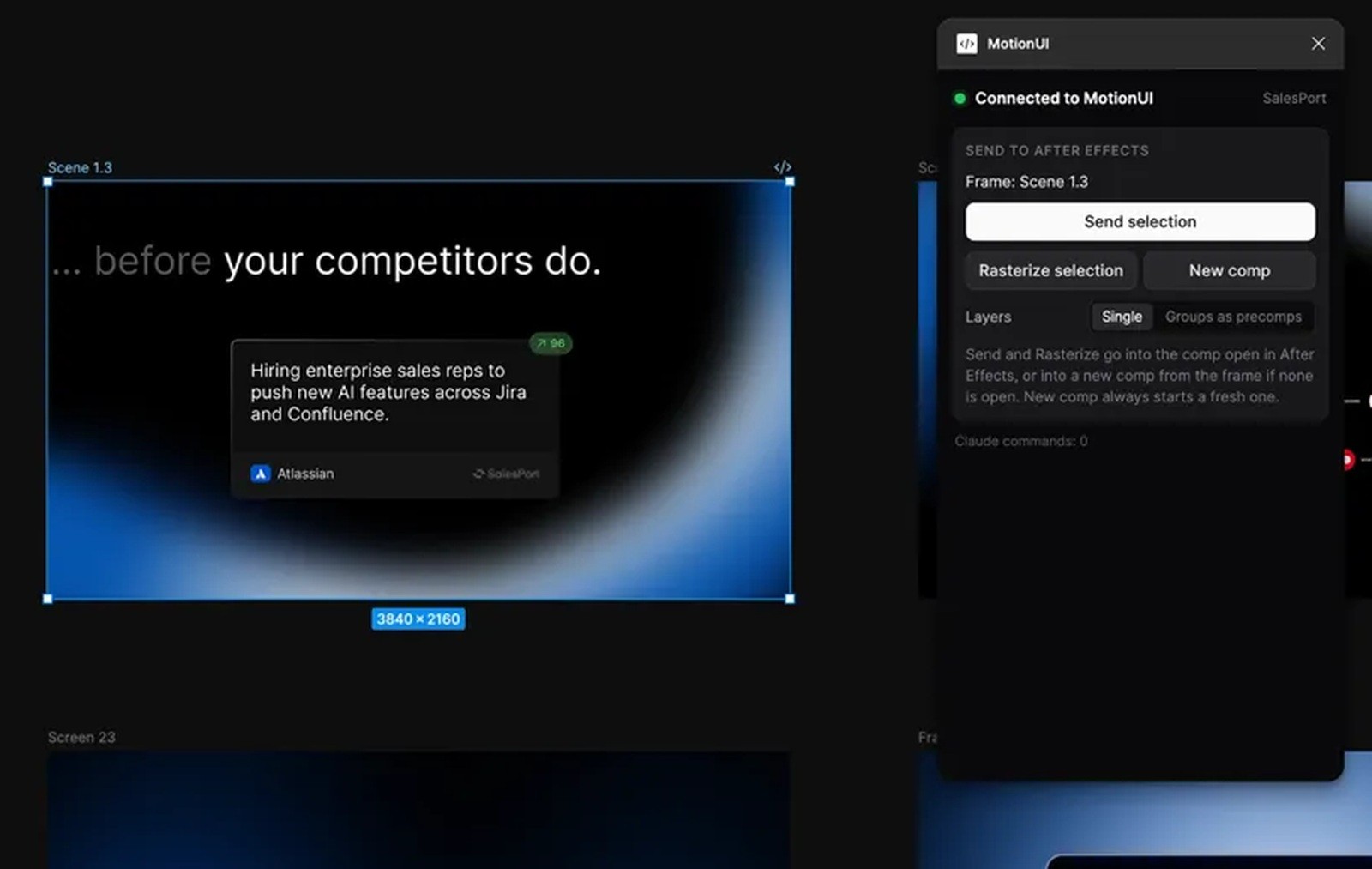
Set your intended frame rate and duration in After Effects first. Select only the dashboard frame in Figma, then click New comp in the Figma plugin to create a separate scene.
The new composition uses the Figma frame size. Its frame rate and duration come from the active After Effects composition, or the latest composition when none is active. Check Recent imports in the MotionUI app while the selection is read and built.
Expected result: A separate dashboard composition opens for review. Check its dimensions and timing before animating. The new composition help page explains these defaults.
Step 5: Rehearse selection, timing, and a revision
Test the same small animation you intend to build: bring in the sidebar, follow with navigation, then reveal the cards. Keep this rehearsal simple enough to evaluate the structure.
Select: With Single, access individual imported elements in the composition. With Groups as precomps, open the relevant precomp to reach its contents.
Revise: Locate a card label and adjust its animation where that layer lives. Check whether the editing location feels practical for repeated changes.
Expected result: You know whether the structure supports both section choreography and detailed edits. If it doesn't suit the task, change Layers and import the frame again. The setting applies to the new import.
What should you check when troubleshooting?
The existing composition hasn't changed: Changing Layers doesn't reorganize an earlier import. Select the source and send it again.
You can't select a card label directly: Open its section precomp and locate the layer. Use Single for a fresh import if direct access is preferable.
The import went into your working scene: Send selection adds to an open composition. Use New comp for a separate trial. See Send a Figma selection to After Effects.
An element arrived as an asset: Supported text, shapes, and vector paths import as editable layers. Artwork requiring an image representation can import as an asset. Inspect the element before planning detailed animation.
Need to set up the app first? Follow the MotionUI setup guide for Mac and Windows.

Bring your interface to life.
MotionUI