Figma to After Effects import stuck? Here is what to check
Troubleshooting
4 min read
What you’ll learn
Opening Figma alone doesn't link a file; its MotionUI plugin must stay open.
Figma can slow plugin work when running in the background.
After Effects can be running while its MotionUI panel connection is silent.
Find where your MotionUI import stops using one small test shape and targeted connection checks.
You will: Identify the stalled step and retry without resetting everything.
Prerequisites: macOS or Windows, MotionUI app, Figma desktop, After Effects, a design file
How do you isolate a waiting Figma import?
Check each connection separately: the MotionUI app, the plugin inside your Figma file, the linked file, and the After Effects panel. Use the same small selection throughout so each retry answers a specific question.
Step 1: Prepare a small test shape
In the Figma file you want to import from, create a simple frame containing a small rectangle. Select that frame instead of your full interface.
Concrete example: Use a rectangle with a solid fill as your test content. Keep this selection unchanged while checking connections. Once it imports, return to your original selection.
Expected result: You have a simple frame ready for a repeatable import attempt.
Step 2: Open the MotionUI app
Launch MotionUI on your computer and keep it running during the checks. MotionUI is HIVER’s desktop app for macOS and Windows connecting Figma, After Effects, Claude Code and Codex. The MotionUI app is the entry point for plugin setup; MotionUI is available for macOS and Windows.
Open the app’s Figma and After Effects tabs to inspect their connections separately. Having the design applications open isn't the same as having their MotionUI connections ready.
Expected result: You can inspect connection information in the MotionUI app before retrying the import.
Step 3: Run the Figma plugin in the correct file
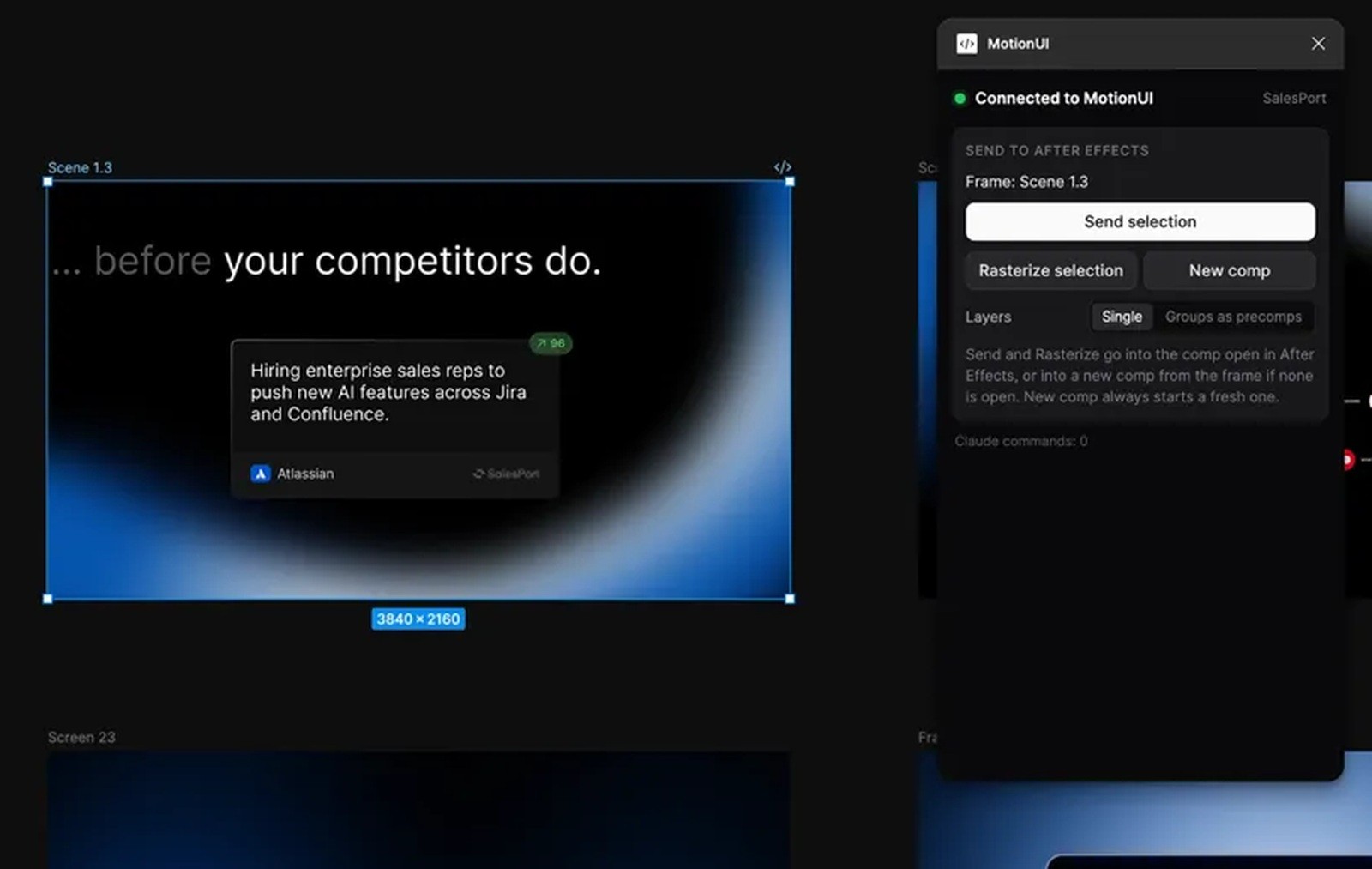
Open the actual Figma design file containing your test frame. Run Plugins → Development → MotionUI and keep the plugin window open.
If the plugin isn't installed, start in MotionUI’s Figma tab:
Find Get the plugin and click Copy plugin files.
In Figma desktop, choose Plugins → Development → Import plugin from manifest.
On macOS, press Command + Shift + G in the file picker and paste the copied path. On Windows, paste the path into the File name field. Open
manifest.json.Run MotionUI inside your design file.
Use Copy path if you need the manifest path again. The Figma plugin setup guide covers this installation sequence.
Expected result: The plugin is open inside the file you're testing.
Step 4: Confirm the file appears under Linked files
Return to the MotionUI app and check Linked files. Confirm that the file containing your test frame appears there.
If it doesn't appear, check which file is running the plugin. Opening Figma alone does not link a file. If you just updated MotionUI, close the Figma plugin and run it again to load the current build.
Expected result: Your intended source file appears under Linked files.
Record each successful checkpoint before changing anything else. A linked Figma file and a responding After Effects panel are separate checks.
Step 5: Open the After Effects panel
In After Effects, open MotionUI from the Window menu under Extensions. Return to the MotionUI app and check Link to After Effects.
An Active status means the panel connection is responding. After Effects can be running while the MotionUI panel is closed.
If installation is needed, save your work and close After Effects. In MotionUI’s After Effects tab, click Install panel, or Update panel when available. Reopen After Effects and its MotionUI panel. See the After Effects panel connection guide.
Expected result: Link to After Effects reports Active.
Step 6: Retry and inspect Recent imports
Retry the import with your test frame, then inspect Recent imports in MotionUI. Check the reported stage rather than assuming every waiting import has the same cause.
Stage shown | What MotionUI is doing |
|---|---|
Reading the selection | Reading the selected Figma content |
Saving files | Saving files for the import |
Waiting for After Effects | Waiting for After Effects |
Building layers | Building the imported layers |
Bring Figma to the foreground while MotionUI reads the selection. Figma can slow plugin work in the background. When an import is triggered from After Effects, MotionUI may briefly bring Figma forward for this reason.
Expected result: The test imports, or you identify the stage where progress stops.
Step 7: Record the last successful checkpoint
If the import remains blocked, note the last confirmed success before updating or restarting anything. For example, if the file is linked and the panel is Active, report both observations alongside the stage shown in Recent imports.
Contact support with the exact message, app and panel versions, and stopping step. Include whether bringing Figma forward changed progress and whether the simple frame imported.
Expected result: Your report identifies the stopping point without discarding useful connection evidence.
Troubleshooting: what should you try if the import still waits?
No linked file: Run the Figma plugin inside the intended file and leave its window open.
Panel silent: Open the After Effects panel. After a panel update, reopen it; restart After Effects if that doesn't restore the connection.
Reading is slow: Keep Figma in the foreground while the selection is read.
Still blocked: Update the MotionUI app and both plugins, then retry with one simple frame. Preserve your earlier observations for support.
Need to set up the app first? Follow the MotionUI setup guide for Mac and Windows.

Bring your interface to life.
MotionUI