How to connect Claude Code to After Effects
AI workflows
4 min read
What you’ll learn
Connect Claude Code from AI → Connect AI in the MotionUI app.
Keep the After Effects panel and target composition open.
Inspect the scene first, then review and approve a focused animation plan.
You can use Claude Code to inspect an After Effects composition and make changes through MotionUI. The connection exposes tools for working with compositions, layers and animation. Start with a read-only check so you know the agent is looking at the right scene.
You need: MotionUI on macOS or Windows, After Effects, the MotionUI After Effects panel, Claude Code installed and signed in, and Node.js for the local MotionUI tool server.
Supported AI clients: use Claude Code or Codex with the MotionUI tools connected. The ordinary ChatGPT and Claude chat interfaces do not provide this MotionUI workflow. Claude Code can appear inside the Claude desktop app; choose its Code environment, not a normal chat.
1. Install the MotionUI panel
Open the After Effects tab in the MotionUI desktop app and install the panel. If MotionUI asks you to close After Effects during installation, do so, then reopen it. Open your project and the MotionUI panel in After Effects.
The panel supplies the local connection files. If the AI section says Install the panel first, return to this step before trying to connect an agent.
2. Connect Claude Code in MotionUI
Open AI in the MotionUI app. Under Connect AI, find Claude Code and click Connect. If the existing connection needs refreshing, the action is Update. MotionUI registers its After Effects tools with the selected agent.
If the app reports that Claude Code is not installed, open the coding-agent application on this computer and check its installation. If Node.js is missing, install it from its official website, then try connecting again.
Connection checkpoint: the Claude Code row should show Connected. A connected Codex row does not establish a connection for Claude Code; each client is configured separately.
3. Open a new agent session
Start a new Claude Code session after connecting or updating the MotionUI tools. Keep After Effects open with the MotionUI panel and activate the composition you intend to work on. A successful sign-in to Claude Code and a working connection to After Effects are separate checks.
4. Check which composition the agent can see
Send this prompt in Claude Code:
Inspect the active After Effects composition with MotionUI. Report its name, dimensions, frame rate and layer names. Do not create, delete or change anything. If the tools or the composition are unavailable, explain what is missing.
Compare the returned composition and layer names with your After Effects timeline. Continue only when they match. A text description written from your prompt alone is not evidence of a working connection: the agent should use the MotionUI tools to inspect the scene.
5. Request a small animation
Save your project and choose one clearly named layer. Ask the agent to propose the animation before changing anything. For example:
In the active composition, inspect the layer named Primary card. Propose a short entrance using position and opacity. Keep its final position and all other layers unchanged. Tell me the timing and easing, then wait for my approval.
Review the plan, approve it in Claude Code, and preview the result in After Effects. Check that the motion ends in the intended layout and that the relevant layers and keyframes remain editable.
Can I start the request from the After Effects panel?
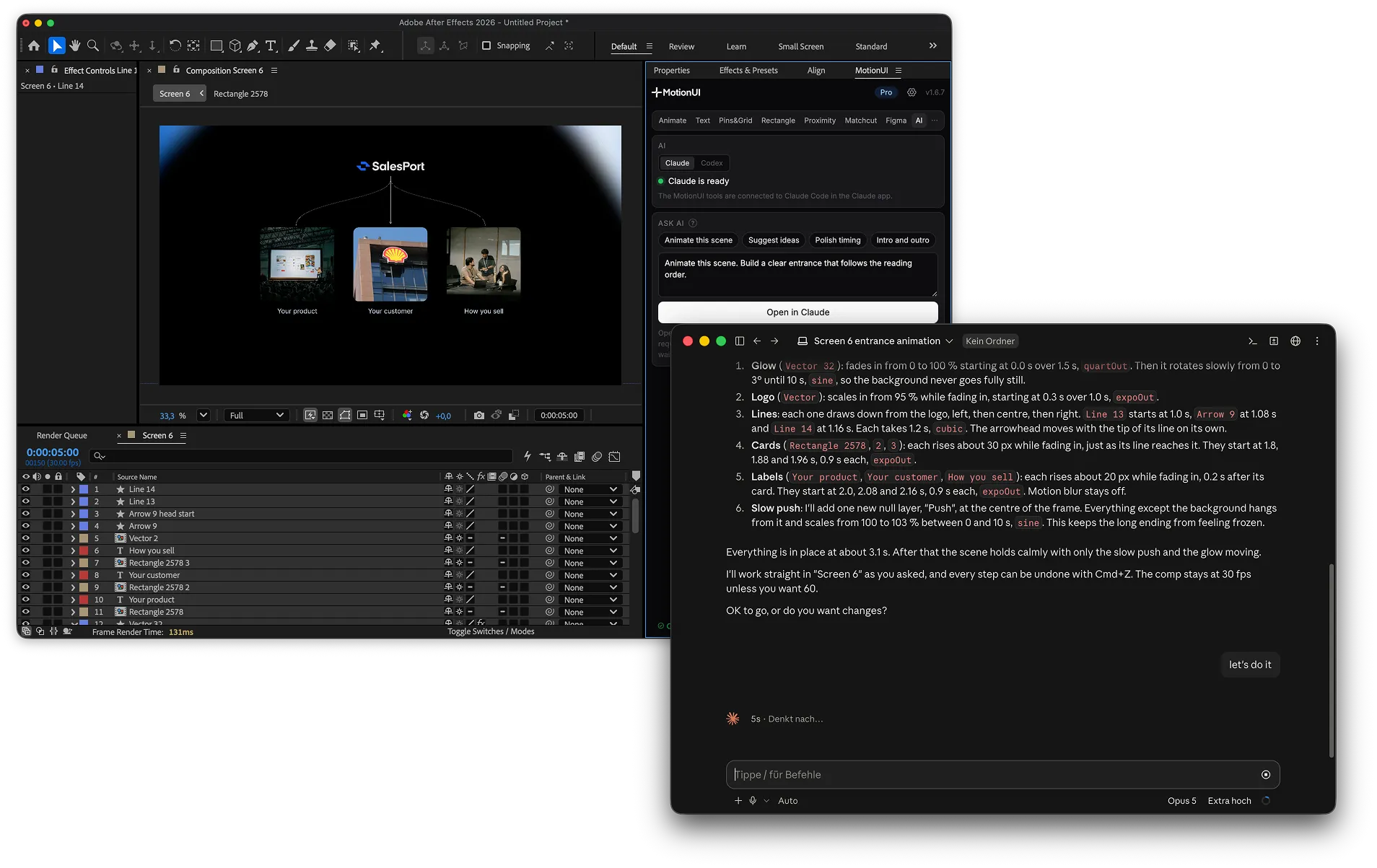
Yes. Open the panel’s AI tab, select Claude Code, enter your request and click Open in Claude. The panel passes the active composition context to the agent and also copies the prepared prompt to the clipboard. Continue the conversation and approve the plan in Claude Code. See the MotionUI AI panel guide.
What if the connection fails?
Tools are missing: check the Claude Code row in MotionUI, reconnect if needed and start a new session.
No composition is available: open the intended composition in After Effects and keep the panel open.
The agent will not open: open it manually. If the panel confirms that the prompt was copied, paste it into the coding-agent session.
Sign-in has expired: complete sign-in in Claude Code itself, then retry the inspection request.
For the complete checklist, see fixing an After Effects AI connection.
Next guide

Bring your interface to life.
MotionUI