Claude Code or Codex cannot see After Effects? Fix the connection
Troubleshooting
3 min read
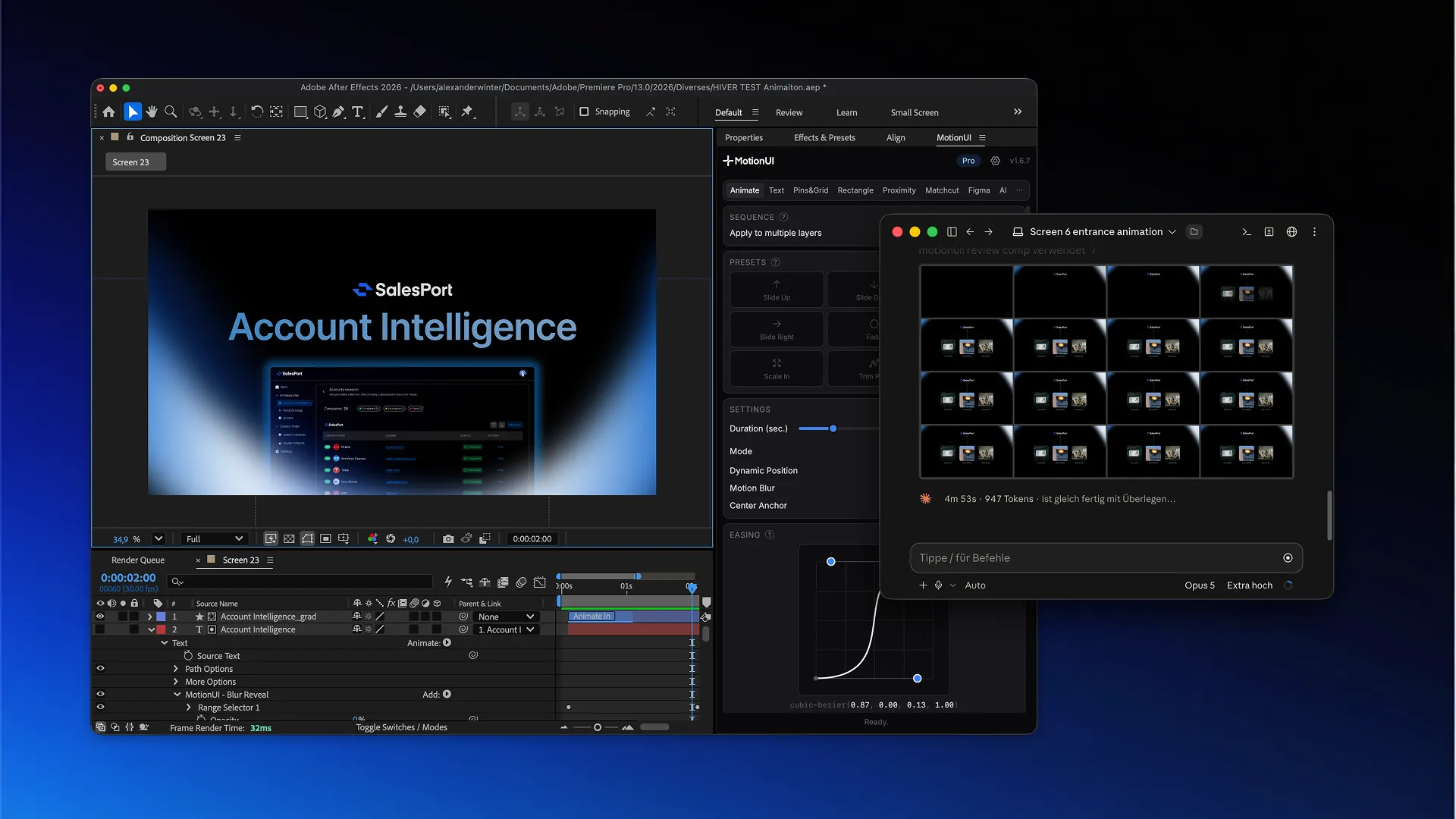
What you’ll learn
Separate account sign-in, MotionUI tool registration and the active composition.
Start a fresh agent session after connecting or updating tools.
If an app link fails, open the agent and use the copied prompt.
If Claude Code or Codex cannot see your After Effects composition, check the agent, its MotionUI tools and the open composition separately. Repeating the animation prompt will not repair a missing connection.
Supported AI clients: use Claude Code or Codex with the MotionUI tools connected. The ordinary ChatGPT and Claude chat interfaces do not provide this MotionUI workflow. Claude Code can appear inside the Claude desktop app; choose its Code environment, not a normal chat.
1. Check the selected agent
Open Claude Code or Codex directly and confirm that you can start a session. If you are in an ordinary Claude or ChatGPT chat, switch to the coding-agent environment. If an account or token error appears, complete sign-in inside that agent.
2. Check the MotionUI connection
In the MotionUI app on macOS or Windows, open AI → Connect AI. The selected agent should show Connected. Use Connect when it is not connected or Update when the existing connection needs refreshing.
Install the panel first: install it through the app’s After Effects tab.
App is not installed: check that the chosen coding agent is installed on the same computer.
Node.js is missing: install Node.js, then connect again.
Start a new agent session after changing its tools. Claude Code and Codex have separate connection entries.
3. Check After Effects and the active composition
Open After Effects, your project and the MotionUI panel. Activate the composition that should receive the animation. Check the After Effects connection in the MotionUI app. An open project with no active composition is not enough for a request that targets the current comp.
Inspect the active After Effects composition with MotionUI. Report its name, dimensions, frame rate and layer names. Do not create, delete or change anything. If the tools or the composition are unavailable, explain what is missing.
Compare the returned names with the timeline. If the wrong composition is reported, activate the correct one and inspect it again before approving changes.
4. If “Open in Claude” or “Open in Codex” does nothing
The panel uses an application link to open the chosen agent. Open Claude Code or Codex manually if that link fails. When the panel reports that the request is on the clipboard, paste it into the coding-agent session and submit it there. This preserves the prepared composition context without requiring the app link to succeed.
The panel request is intended to produce a plan first. Approval happens in the agent conversation. There is no need to look for an old Apply plan button in the panel.
5. If Figma is the missing connection
Figma access is a separate check. Keep MotionUI running, run its plugin in the intended Figma file and check Linked files. Ask the configured agent to identify that file and frame before editing. A working After Effects connection does not prove that the Figma file is available.
What should I include in a support request?
Include macOS or Windows, the MotionUI app and panel versions, the selected agent, the exact error and the result of the read-only composition check. Note whether the failure happens while connecting, opening the agent or inspecting the comp. Leave passwords, API keys and authentication tokens out of the report.
See the setup guide for Claude Code or Codex if the connection has never worked.

Bring your interface to life.
MotionUI