How to use Claude Code and Codex from the MotionUI AI panel
AI workflows
3 min read
What you’ll learn
The panel sends composition context to Claude Code or Codex.
Review and approve the plan in the coding-agent conversation.
The copied prompt provides a fallback when the application link does not open.
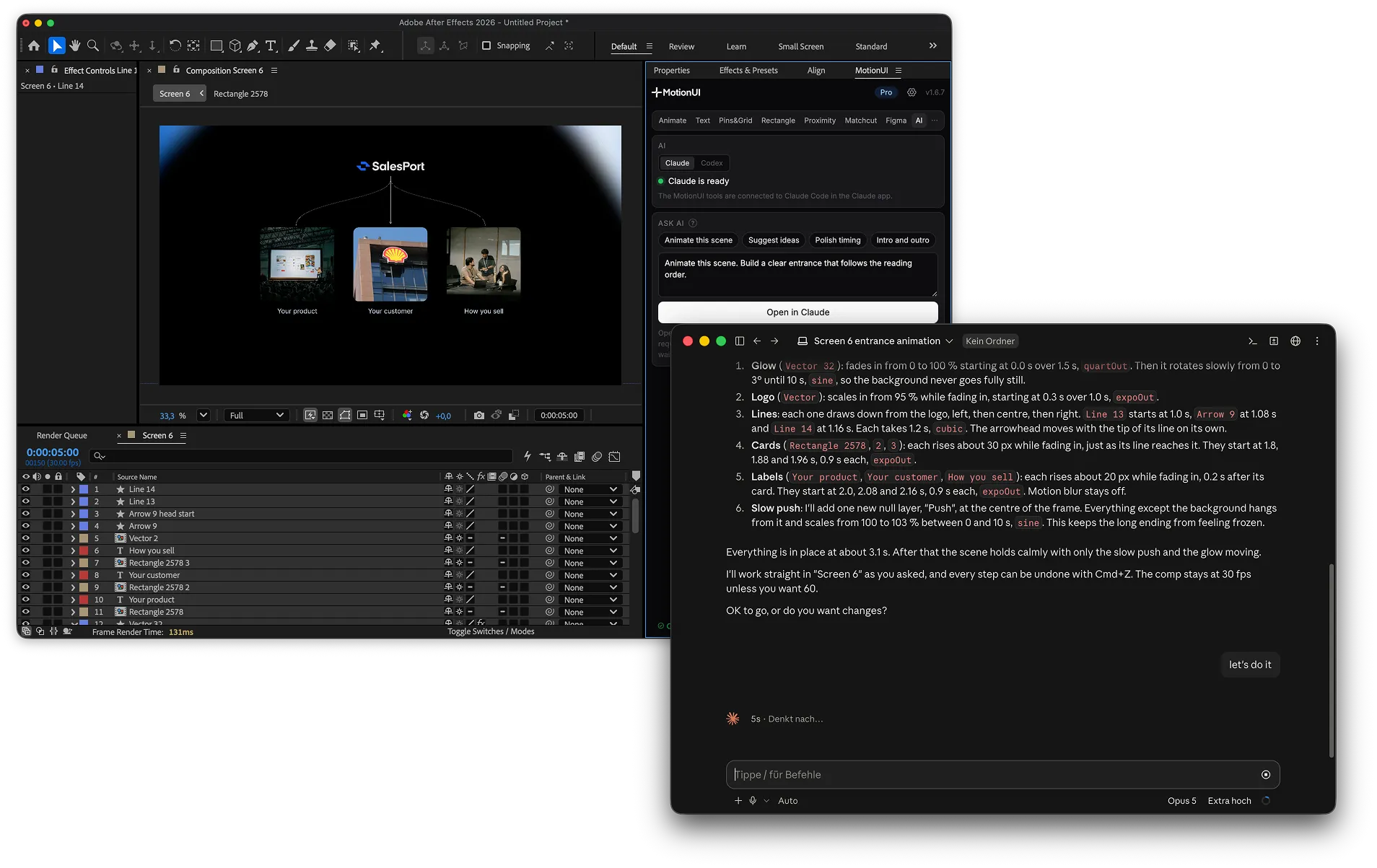
The MotionUI AI tab prepares an animation request with context from your open After Effects composition. It opens Claude Code or Codex so you can review a plan and continue the work there.
You need: MotionUI on macOS or Windows, the After Effects panel, an open composition and a connected Claude Code or Codex installation on the same computer.
Supported AI clients: use Claude Code or Codex with the MotionUI tools connected. The ordinary ChatGPT and Claude chat interfaces do not provide this MotionUI workflow. Claude Code can appear inside the Claude desktop app; choose its Code environment, not a normal chat.
1. Prepare the composition
Open the composition you want to animate and give important layers clear names. Save the project before requesting larger edits. Select the relevant layers if you want their names included in the prepared request, and also describe them explicitly in your brief.
2. Select and connect the agent
Open the MotionUI panel’s AI tab. Choose Claude Code or Codex. If the tools are missing, use Connect now; if the connection is outdated, use Update connection. You can also configure the selected agent in the MotionUI desktop app under AI → Connect AI.
Connecting registers MotionUI’s local tools. You still need to be signed in to the chosen coding agent. Ordinary Claude and ChatGPT chat sessions are not supported clients for this workflow.
3. Describe one animation
A useful first request names a visible outcome and limits the scope. For example:
Animate the three metric cards in reading order after the navigation appears. Use a subtle position and opacity entrance. Keep all final positions, text and chart data unchanged. Propose the timing and easing before making edits.
Avoid asking for a complete redesign and a finished animation in one request. Review one sequence, then add the next interaction.
4. Open the request in Claude Code or Codex
Click Open in Claude or Open in Codex. The prepared prompt includes the active composition’s identity, dimensions, duration, frame rate and selected layer names when present. The panel also copies it to the clipboard.
Submit the request in the agent. If the application link does not open it, launch the coding agent yourself and paste the copied prompt. Check that its composition details match your open scene.
5. Review the plan in the agent conversation
The prepared request tells the agent to inspect the scene, propose the target layers, movements, start times, durations and easing, then wait for your approval. Read those details before agreeing. Ask for a revised plan if it targets the wrong layers or changes the final layout.
Approve the plan in Claude Code or Codex. The connected agent applies it through MotionUI. This is a handoff to the coding agent, so the review and approval happen there.
6. Preview and refine in After Effects
Play back the actual composition. Check reading order, text visibility, the final layout and any existing animation that should remain. Ask for one refinement at a time, such as less travel distance or a shorter delay between cards. You can also edit the resulting layers and keyframes yourself.
If the agent cannot inspect the scene, follow the connection checklist before requesting more animation.

Bring your interface to life.
MotionUI